Install IPTV on Amazon Fire TV Stick
 By Yanis Moreau, IPTV & Streaming Editor Last updated
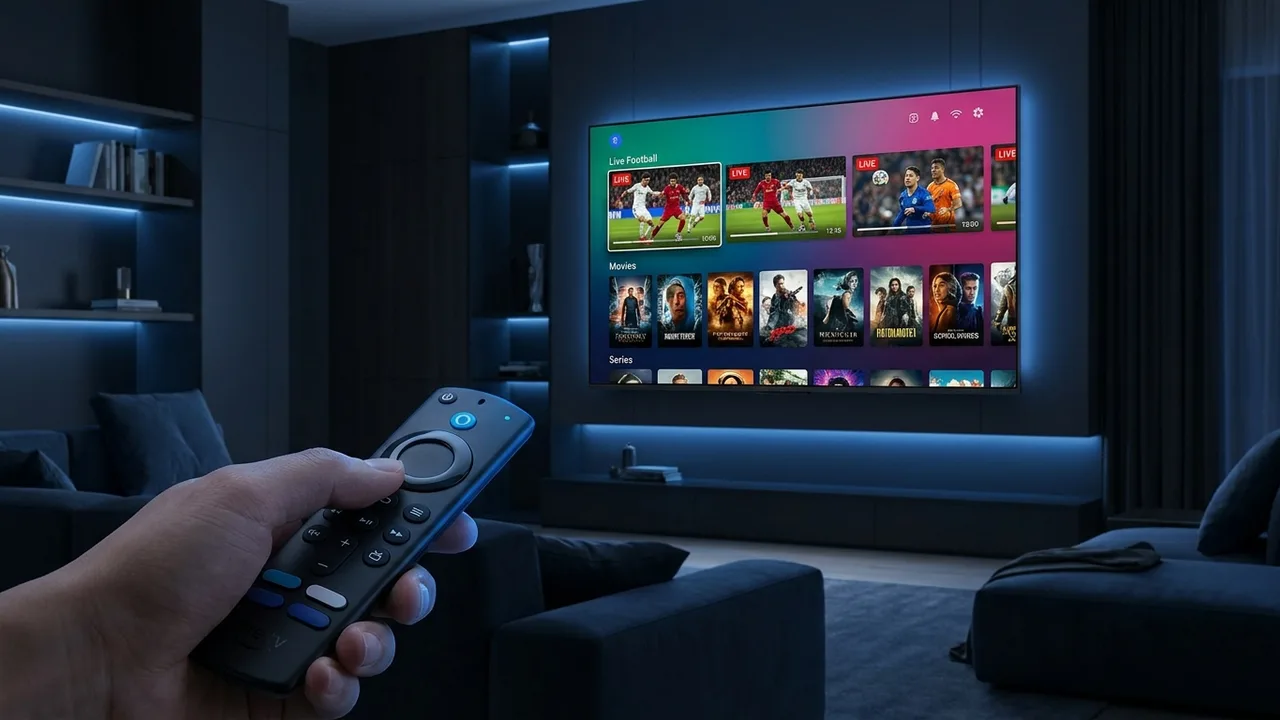
To install IPTV on a Fire TV Stick, allow apps from unknown sources, install an IPTV player through the Downloader app, then enter your login details. The whole process takes about ten minutes the first time, and nothing needs to be plugged into a computer.
What you need before you start
- Any Amazon Fire TV Stick (Lite, 4K or 4K Max) or a Fire TV Cube.
- A working internet connection — around 10 Mbps for HD, 25 Mbps or more for 4K.
- Your subscription details: an Xtream Codes login (username, password, server URL) or an M3U link.
- About ten minutes.
Steps
- On the home screen, go to Settings → My Fire TV → Developer Options and turn on Install unknown apps for the Downloader app.
- Open the Appstore, search for Downloader and install it — it's the free tool that lets you side-load a player.
- Open Downloader and install an IPTV player such as IPTV Smarters Pro or TiviMate, from the Appstore or its download code.
- Launch the player and add your subscription using your Xtream Codes login or an M3U URL.
- Wait for the channels and the TV guide (EPG) to load, then start watching.
Want a walk-through of the app itself? See the dedicated IPTV Smarters Pro and TiviMate guides.
Which player should you use?
| Player | Best for | Login type |
|---|---|---|
| IPTV Smarters Pro | Beginners — simple layout, quick setup | Xtream Codes or M3U |
| TiviMate | Power users — best EPG and recording (Premium) | Xtream Codes or M3U |
Both are free to start. TiviMate's paid tier adds recording and multiple playlists; Smarters is the fastest way to get going. You can install both and keep whichever you prefer.
Fire Stick models and 4K
Any current Fire Stick runs IPTV. For 4K channels and 4K on-demand, use a Fire TV Stick 4K, 4K Max or a Fire TV Cube, and make sure your connection can sustain 25–35 Mbps. The entry-level Lite plays HD comfortably. On older Sticks, closing background apps keeps playback smooth.
Common problems and quick fixes
- Buffering or freezing — usually the connection. Move the Stick closer to the router or add an Ethernet adapter; full steps in fix IPTV buffering.
- App won't install — re-check that "Install unknown apps" is enabled for Downloader (step 1).
- Channels loaded but no TV guide — give the EPG a few minutes on first launch, or see fix the IPTV EPG.
- Weak Wi-Fi — the Stick's aerial is small; switching to the 5 GHz band or a wired adapter helps most.
Frequently asked questions
Do I need to jailbreak the Fire Stick?
No. You do not need to "jailbreak" a Fire Stick. You simply allow the Downloader app to install a player, which is a standard, built-in Fire OS setting.
Which IPTV app is best on Fire Stick?
IPTV Smarters Pro is the easiest for beginners; TiviMate has the best TV guide and recording for power users. Both work well and are free to start.
Will IPTV work on the basic Fire Stick Lite?
Yes. The Lite plays HD channels comfortably. For 4K you want a Fire TV Stick 4K, 4K Max or Fire TV Cube.
Why does my Fire Stick keep buffering?
Almost always the connection. Use 5 GHz Wi-Fi or an Ethernet adapter and check your speed against the recommended figures. Our fix-buffering guide lists the causes in order.
Can I use a wired connection?
Yes. An official Amazon Ethernet adapter plugs into the Stick and gives the most stable picture, which is ideal for sport.
All that's left is to connect a reliable IPTV subscription and enjoy your channels.